
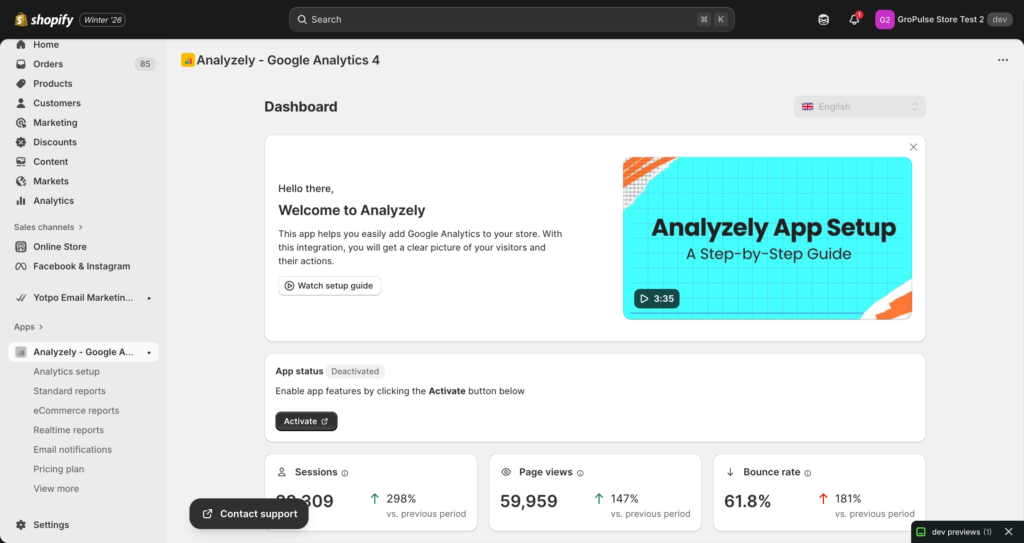
The Analyzely dashboard is your central hub for monitoring your store’s analytics status and accessing key insights at a glance. This guide explains each section of the dashboard and how to use it effectively.
Accessing the Dashboard
The dashboard is the first page you see when opening Analyzely. You can also access it by:
- Clicking Dashboard in the sidebar navigation
- Clicking the app name/logo in the header
Dashboard Sections
1. Welcome Card
The welcome card appears at the top of your dashboard and provides quick access to essential resources:
- Setup Video Guide – Watch a tutorial on setting up the app
- Quick Tips – Get started with best practices
2. App Activation Banner
This banner shows whether Analyzely is properly activated in your Shopify theme.
When Active (Green):
- Displays “App is active”
- Your store is tracking data
When Inactive (Yellow/Warning):
- Displays “App is not active”
- Shows a button to activate in theme editor
- Tracking is NOT working until activated
To Activate the App:
- Click the Activate button in the banner
- You will be redirected to your theme’s App Embeds settings
- Toggle Analyzely to ON
- Click Save in the theme editor
3. Quick Metrics Overview
This section displays your store’s key performance metrics at a glance:
| Metric | Description |
|---|---|
| Sessions | Total number of visits to your store |
| Page Views | Total number of pages viewed |
| Bounce Rate | Percentage of single-page sessions |
Each metric shows:
- The current value
- Percentage change compared to the previous period
- An up/down indicator (green for improvement, red for decline)
Note: Data is shown for the last 30 days by default. Percentage changes compare to the previous 30-day period.
4. Current Plan Status Card
This card displays your current subscription plan and provides quick access to plan management:
- Plan Name – Free, Monthly, or Yearly
- Plan Features – Quick list of included features
- Upgrade Button – Link to the pricing page (on Free plan)
- Manage Button – Link to plan management (on paid plans)
5. Analytics Setup Overview
This important section shows the status of your Google Analytics configuration:
| Setting | Status |
|---|---|
| Google Account | Connected / Not Connected |
| Measurement ID | Configured / Not Set |
| Server-Side Events | Enabled / Disabled (Pro) |
| Google Consent Mode V2 | Enabled / Disabled |
Each item shows:
- A checkmark (configured) or warning icon (needs attention)
- Current status or value
- Link to configure in Analytics Setup
Quick Actions:
- Click on any item to navigate directly to that setting
- Click Analytics Setup to go to the full configuration page
6. Event Status Card
This section shows the status of all your eCommerce tracking events:
| Event | Status |
|---|---|
| Track Collection Views | ON / OFF |
| Track Product Views | ON / OFF |
| Track Search | ON / OFF |
| Track Add to Cart | ON / OFF |
| Track Checkout Starts | ON / OFF |
| Track Shipping Info | ON / OFF |
| Track Payment Info | ON / OFF |
| Track Purchases | ON / OFF |
| Track Refunds | ON / OFF (Pro) |
Events with a “Pro” badge require an active Pro subscription to enable.
Quick Actions:
- Click Configure Events to go to the event tracking settings
- Toggle events on/off directly from Analytics Setup
7. Email Notifications Status Card
If you have email reports configured, this card shows:
| Information | Description |
|---|---|
| Status | Active / Inactive |
| Last Sent | Date of the last email report |
| Next Scheduled | Date of the next scheduled report |
| Total Sent | Number of reports sent so far |
Quick Actions:
- Click Configure to set up email notifications
- Click View Settings to modify existing configuration
8. Contact Support Card
At the bottom of the dashboard, you will find the support card:
- Live Chat – Open the support chat widget
- Documentation – Link to help documentation
- Email Support – Contact form for assistance
Understanding Your Metrics
Sessions vs Page Views
- Sessions: A session is a group of user interactions that take place on your website within a given time frame. A single session can contain multiple page views.
- Page Views: The total number of pages viewed. Repeated views of a single page are counted.
Example: If a customer visits your home page, then a product page, then the cart page, that counts as:
- 1 Session
- 3 Page Views
Bounce Rate
Bounce rate is the percentage of sessions where the user left your site without interacting further.
| Bounce Rate | Interpretation |
|---|---|
| 0-25% | Excellent – Users are highly engaged |
| 26-40% | Good – Normal for most stores |
| 41-55% | Average – Room for improvement |
| 56-70% | Needs attention – Consider UX improvements |
| 70%+ | High – Investigate potential issues |
Tip: A high bounce rate on product pages might indicate pricing issues, poor images, or slow loading times.
Percentage Changes
The percentage shown next to each metric compares:
- Current Period: Last 30 days
- Previous Period: 30 days before that
A green upward arrow indicates improvement, while a red downward arrow indicates decline.
Note: For bounce rate, a decrease (lower percentage) is actually an improvement!
Dashboard Best Practices
Daily Checks
- Verify app activation status
- Monitor quick metrics for any sudden changes
Weekly Checks
- Review event tracking status
- Check email notification delivery
Monthly Checks
- Compare metrics to previous periods
- Review setup configuration for optimization opportunities
Troubleshooting Dashboard Issues
No Data Showing
If your metrics show “No data” or zeros:
- Verify the app is activated in your theme
- Check that your Measurement ID is configured
- Wait 24-48 hours for data to populate (new installations)
- Verify in Google Analytics Realtime that events are being received
Activation Banner Keeps Appearing
If the activation banner shows even after activating:
- Make sure you clicked Save in the theme editor
- Check if you have multiple themes and activated the correct one
- Verify the Analyzely app embed is toggled ON
Metrics Not Updating
Google Analytics data can have a delay:
- Standard Reports: Up to 24-48 hours
- Realtime Reports: Updated every few minutes (Pro)
- Dashboard Metrics: Refreshed on page load
Navigation from Dashboard
From the dashboard, you can quickly access:
| Destination | How to Access |
|---|---|
| Analytics Setup | Click “Setup” in overview card or sidebar |
| Standard Reports | Sidebar navigation |
| eCommerce Reports | Sidebar navigation (Pro) |
| Realtime Reports | Sidebar navigation (Pro) |
| Email Notifications | Click “Configure” in email status card |
| GDPR Banner | Sidebar navigation (Pro) |
| Pricing Plans | Click “Upgrade” in plan card |
| Help Center | Sidebar navigation |