
This guide will walk you through the initial setup of Analyzely to start tracking your Shopify store with Google Analytics 4.
Prerequisites
Before you begin, make sure you have:
- A Shopify store with an active plan
- A Google account (Gmail or Google Workspace)
- A Google Analytics 4 property (or we will help you create one)
Step 1: Install Analyzely
- Go to the Shopify App Store
- Search for “Analyzely” or “Google Analytics 4”
- Click Add app to install it on your store
- Review and approve the required permissions
- Click Install app to complete the installation
Step 2: Connect Your Google Account
After installation, you will be taken to the app dashboard. The first step is to connect your Google account:
- Click Login with Google in the Analytics Setup section
- Select the Google account that has access to your Google Analytics
- Grant the requested permissions:
- View your Google Analytics data
- Manage your Google Analytics properties (for automatic setup)
- Click Allow to complete the connection
Tip: Use the same Google account that owns or has access to your Google Analytics 4 property.
Step 3: Select Your GA4 Property
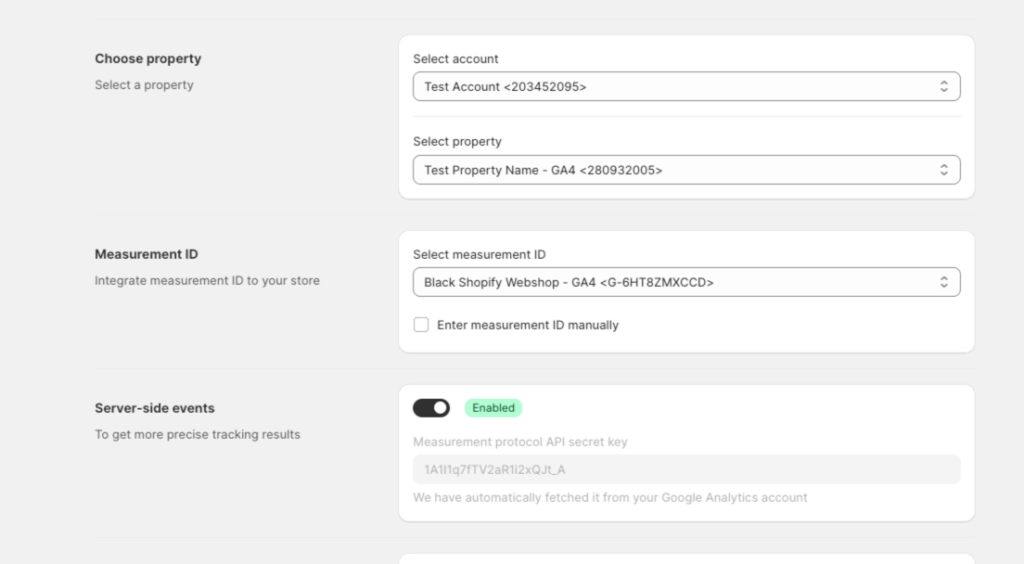
Once connected, you need to select your Google Analytics account and property:
- In the Choose Property section, select your Google Analytics Account from the dropdown
- Select the Property associated with your Shopify store
- The available properties will automatically load based on your account selection
Note: If you do not see your property, make sure you have the correct permissions in Google Analytics. You need at least “Viewer” access to see properties.
Step 4: Configure Measurement ID
The Measurement ID is how Google Analytics identifies your data stream. You have two options:
Option A: Automatic Selection (Recommended)
- Keep the Automatic option selected
- The app will automatically detect and select your Measurement ID from the property
Option B: Manual Entry
- Toggle to Manual mode
- Enter your Measurement ID (starts with “G-“)
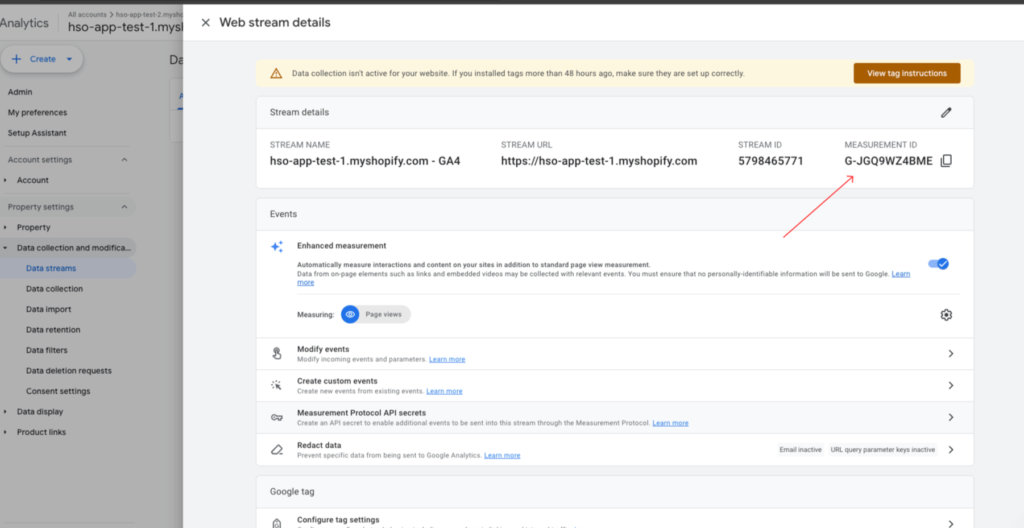
- You can find this in Google Analytics under Admin > Data Streams > Web Stream
How to find your Measurement ID:
- Go to Google Analytics
- Click Admin (gear icon)
- Select your property
- Click Data Streams
- Click on your web stream
- Copy the Measurement ID (format: G-XXXXXXXXXX)
Step 5: Activate the App in Your Theme
After configuring your settings, you need to activate Analyzely in your Shopify theme:
- Click the Activate App button in the app dashboard
- You will be redirected to your theme’s App Embeds settings
- Find Analyzely in the list of app embeds
- Toggle it ON
- Click Save in the theme editor
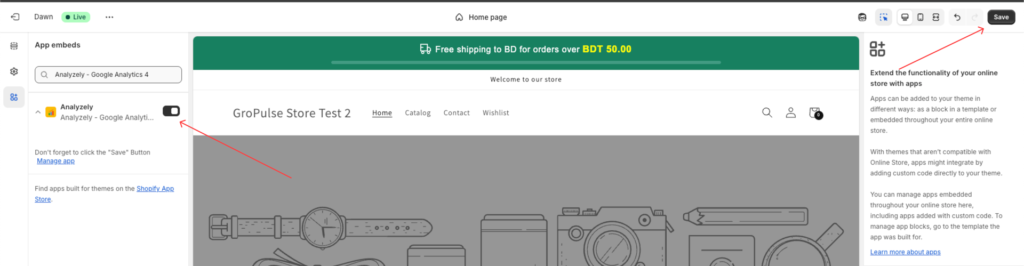
Important: The app will not track any data until you complete this activation step.
Step 6: Save Your Settings
- Return to the Analyzely app
- Review all your settings
- Click the Save button in the save bar at the top of the page
- Wait for the confirmation message
Step 7: Verify Your Setup
To confirm everything is working:
- Go to your store and browse a few pages
- Return to the Analyzely dashboard
- Check the Realtime Reports to see live activity (Pro plan)
- Or wait 24-48 hours for data to appear in Standard Reports
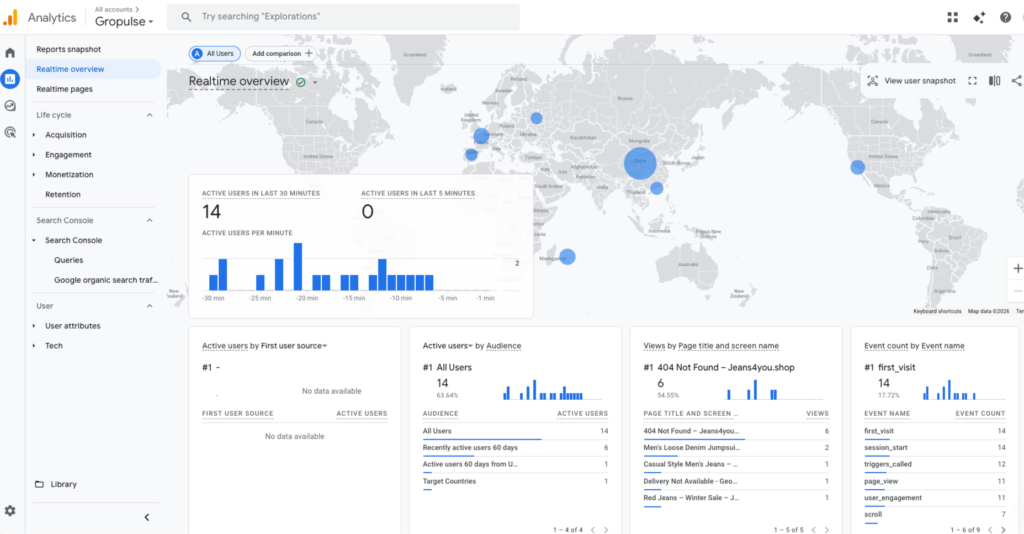
You can also verify in Google Analytics:
- Go to Google Analytics
- Navigate to Reports > Realtime
- You should see your activity reflected there
What’s Next?
Now that you have completed the basic setup, consider exploring these features:
- Configure Event Tracking – Enable enhanced eCommerce events
- Enable Server-Side Tracking – Get more accurate data (Pro)
- Set Up Email Reports – Receive scheduled reports
- Explore the Dashboard – Understand your analytics
Quick Checklist
Use this checklist to ensure you have completed all setup steps:
- ☐ Installed Analyzely from the Shopify App Store
- ☐ Connected your Google account
- ☐ Selected your GA4 account and property
- ☐ Configured your Measurement ID
- ☐ Activated the app in your theme’s App Embeds
- ☐ Saved all settings
- ☐ Verified tracking is working
Need Help?
If you encounter any issues during setup:
- Check the Troubleshooting & FAQ guide
- Watch the setup video tutorial in the app (click the video icon)
- Contact support through the in-app chat
Related Guides: