
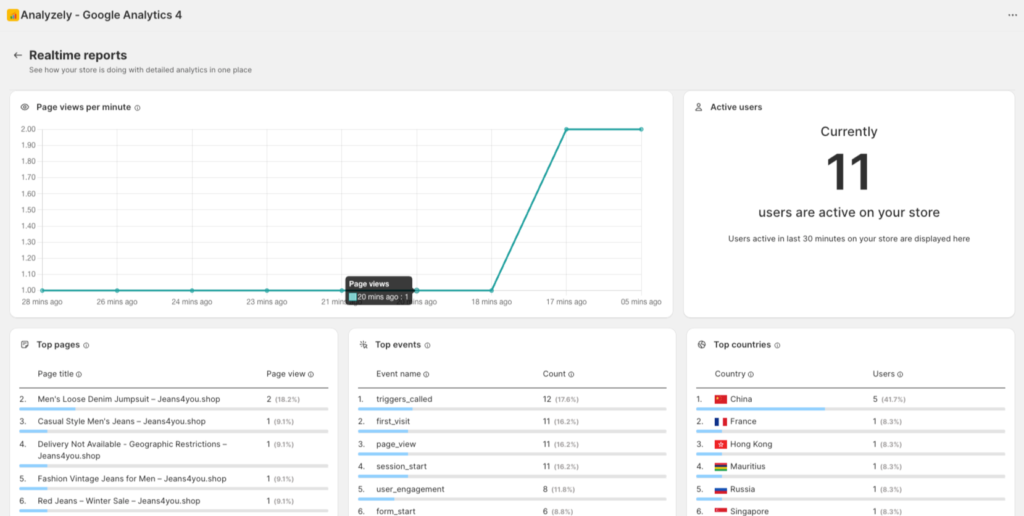
Realtime Reports show you live activity on your store as it happens. Monitor active visitors, see which pages they are viewing, and track events in real-time.
Note: Realtime Reports are a Pro plan feature. Upgrade your plan to access live tracking.
Overview
The Realtime Reports page gives you live insights into:
- Current active users on your store
- Pages being viewed right now
- Geographic location of active visitors
- Events happening in real-time
- Traffic sources of current visitors
Accessing Realtime Reports
- Open the Analyzely app from your Shopify Admin
- Click Realtime Reports in the sidebar navigation
- The report will display live data immediately
Prerequisites
Before viewing Realtime reports, ensure:
- You have an active Pro subscription
- Your Google account is connected
- A Measurement ID is configured
- The app is activated in your theme
- Your store has current visitors
Free Plan Users
On the Free plan, you will see a preview with an upgrade prompt:
Active Users Display
Current Active Users
The main metric shows how many people are on your store right now:
What counts as “active”:
- Users who have interacted with your store in the last 5 minutes
- Includes page views, clicks, scrolls, and other interactions
- Updates automatically every few seconds
Understanding the Count
| Count | Interpretation |
|---|---|
| 0 | No current visitors (normal for small stores) |
| 1-10 | Typical for small-medium stores |
| 10-50 | Good traffic, busy period |
| 50+ | High traffic, peak time or campaign effect |
Tip: Open your store in another browser to see yourself counted as an active user (useful for testing).
Active Pages
This section shows which pages are being viewed right now:
| Column | Description |
|---|---|
| Page Title | Name of the page |
| Page Path | URL path being viewed |
| Active Users | Number of users on that page |
Using This Data
- Monitor product interest: See which products visitors are viewing
- Track campaign landing pages: Verify traffic reaches target pages
- Identify popular content: See what attracts attention right now
- Spot navigation patterns: Understand browsing behavior
Active Users by Location
See where your current visitors are located:
| Information | Description |
|---|---|
| Country | Visitor’s country with flag |
| City | Visitor’s city (if available) |
| Active Users | Count from that location |
Using This Data
- Verify targeting: Confirm ads reach intended regions
- Monitor international traffic: See global reach in real-time
- Identify market opportunities: Spot unexpected geographic interest
Traffic Sources (Realtime)
See where current visitors came from:
| Source | Description |
|---|---|
| Direct | Typed URL or bookmarks |
| Organic Search | Search engine results |
| Referral | Links from other websites |
| Social | Social media platforms |
| Paid Search | Google Ads or other paid search |
Using This Data
- Verify campaign launch: See immediate traffic from ads
- Monitor social posts: Track traffic from social shares
- Check referral partnerships: Verify referral traffic in real-time
Events Stream
Watch events as they happen on your store:
| Event Type | Description |
|---|---|
| page_view | Someone viewed a page |
| view_item | Someone viewed a product |
| add_to_cart | Someone added to cart |
| begin_checkout | Someone started checkout |
| purchase | Someone completed a purchase |
Using This Data
- Verify tracking: Confirm events fire correctly
- Monitor checkout flow: Watch customers progress
- Celebrate sales: See purchases happen in real-time
- Debug issues: Identify missing or incorrect events
Use Cases for Realtime Reports
Marketing Campaign Launches
When launching a new campaign:
- Open Realtime Reports before campaign goes live
- Launch your campaign (email, ad, social post)
- Watch traffic arrive in real-time
- Monitor which pages visitors land on
- Track immediate conversions
Flash Sales or Promotions
During time-sensitive promotions:
- Monitor traffic surge at promotion start
- Watch product page views
- Track add-to-cart events
- See purchases as they happen
- Adjust promotion if needed
Website Testing
When making store changes:
- Publish changes to your store
- Visit your store in another browser
- Watch your activity in Realtime Reports
- Verify events fire correctly
- Check page views register properly
Content Publishing
When publishing new content:
- Share blog post or page link
- Monitor traffic to new content
- See engagement in real-time
- Track social shares and referrals
Best Practices
When to Use Realtime Reports
| Scenario | Use Realtime Reports |
|---|---|
| Campaign launch | Yes – monitor immediate impact |
| Flash sales | Yes – track activity |
| Testing tracking | Yes – verify events |
| Regular monitoring | Occasionally – for quick checks |
| Deep analysis | No – use Standard/eCommerce Reports |
Understanding Limitations
- Short-term view: Only shows last 5-30 minutes
- No historical data: Cannot compare to past periods
- Sample data: May not show every single event
- Delayed events: Some events may take seconds to appear
Combining with Other Reports
Use Realtime Reports alongside:
- Standard Reports: For daily/weekly trend analysis
- eCommerce Reports: For revenue and conversion details
- Google Analytics: For more granular realtime data
Troubleshooting
Shows 0 Active Users
Even though you know there are visitors:
- Wait 30-60 seconds for data to update
- Verify app is activated in your theme
- Check Measurement ID is configured
- Try viewing your store in incognito mode
- Check Google Analytics Realtime directly
Events Not Appearing
- Verify the specific event is enabled
- Perform the action (add to cart, etc.) yourself
- Wait up to 30 seconds for event to appear
- Check event tracking configuration
- Ensure no ad blockers are active on your test
Data Seems Incorrect
- Realtime data may differ from other reports
- Some data is sampled for performance
- Compare with Google Analytics Realtime for verification
- Wait for Standard Reports for accurate totals
Page Not Loading
- Check your internet connection
- Try refreshing the page
- Clear browser cache
- Verify Google account is still connected
Verifying Your Tracking Setup
Use Realtime Reports to verify tracking:
Step-by-Step Verification
- Open Realtime Reports in the Analyzely app
- Open your store in a new incognito/private browser window
- Browse your store – view products, add to cart
- Watch Realtime Reports for your activity
- Check each event:
- View a product → Should see view_item event
- Add to cart → Should see add_to_cart event
- Start checkout → Should see begin_checkout event
Expected Results
| Action | Expected Event |
|---|---|
| Visit home page | page_view |
| View product | view_item |
| Search store | search |
| Add to cart | add_to_cart |
| Begin checkout | begin_checkout |
| Complete purchase | purchase |