
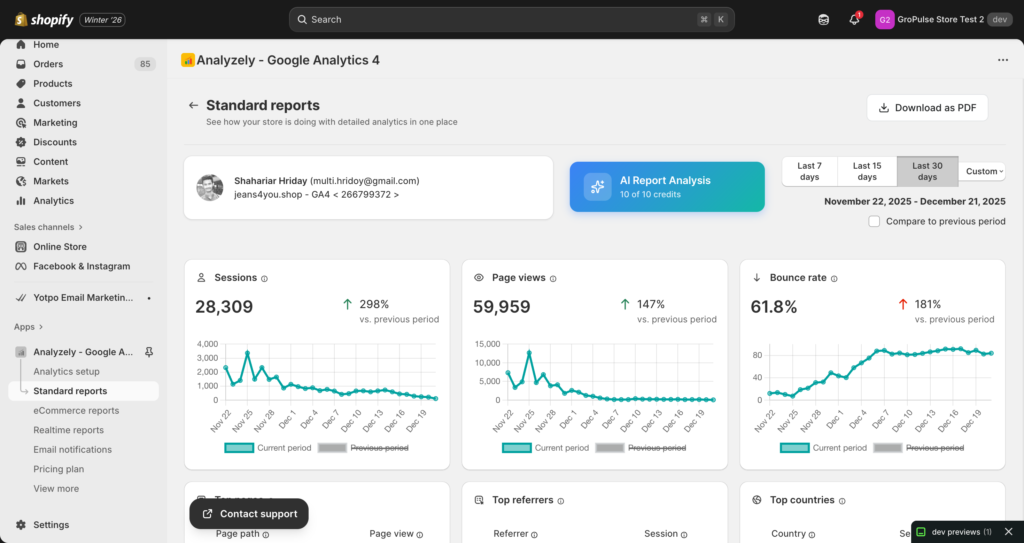
Standard Reports provide essential analytics about your store’s traffic, visitor behavior, and content performance. This report is available on all plans, including the Free plan.
Overview
The Standard Reports page gives you insights into:
- Total sessions and page views
- Bounce rate trends
- Top performing pages
- Traffic sources (referrers)
- Geographic distribution of visitors
- User types (new vs returning)
- Device breakdown
Accessing Standard Reports
- Open the Analyzely app from your Shopify Admin
- Click Standard Reports in the sidebar navigation
- The report will load with data from the last 30 days by default
Prerequisites
Before viewing reports, ensure:
- Your Google account is connected
- A Measurement ID is configured
- The app is activated in your theme
- You have waited at least 24-48 hours for data to populate
If these requirements are not met, you will see an empty state with setup instructions.
Report Header
Connected Account Display
The report header shows your connected Google account:
- Account email
- Profile photo
- Selected GA4 property
Download as PDF
You can export your report as a PDF:
- Click the Download as PDF button in the top right
- Wait for the report to generate
- The PDF will automatically download to your device
Tip: PDFs are great for sharing with team members or including in business reports.
Date Range Filters
Preset Periods
Choose from quick date range options:
| Option | Time Period |
|---|---|
| Last 7 days | Previous 7 days from today |
| Last 15 days | Previous 15 days from today |
| Last 30 days | Previous 30 days from today (default) |
| Custom | Select specific start and end dates |
Custom Date Range
To select a custom date range:
- Click the date filter dropdown
- Select Custom
- Choose your start date
- Choose your end date
- Click Apply
Compare to Previous Period
Enable comparison to see how your metrics have changed:
- Check the Compare to previous period checkbox
- The report will show percentage changes for each metric
- Comparison is based on the same number of days before your selected period
Key Metrics Cards
Sessions
Definition: A session is a group of user interactions with your store within a given time frame.
What it tells you:
- How many times people visited your store
- Trend compared to previous period
- Overall traffic health
Interpreting the data:
- Increasing sessions = growing traffic
- Decreasing sessions = investigate marketing or SEO issues
- Compare with conversion data to assess quality
Page Views
Definition: The total number of pages viewed on your store.
What it tells you:
- How engaged visitors are
- Average pages per session (Page Views / Sessions)
- Content consumption patterns
Interpreting the data:
- High page views with low sessions = engaged visitors
- Low page views per session = consider improving internal linking
- Track alongside conversion rate
Bounce Rate
Definition: The percentage of sessions that ended after viewing only one page.
What it tells you:
- First impression effectiveness
- Content relevance to visitors
- Potential UX issues
Interpreting the data:
| Range | Assessment |
|---|---|
| 0-25% | Excellent engagement |
| 26-40% | Good – typical for retail |
| 41-55% | Average – room for improvement |
| 56-70% | Needs attention |
| 70%+ | Investigate immediately |
Note: A lower bounce rate is better. When comparing periods, a decrease in bounce rate represents an improvement.
Top Pages Report
This section shows your most viewed pages:
| Column | Description |
|---|---|
| Page Path | The URL path of the page |
| Page Views | Total views for that page |
| Percentage | Share of total page views |
Using This Data
- Identify popular products: See which product pages get the most views
- Optimize top pages: Focus improvement efforts on high-traffic pages
- Find underperformers: Compare page views to expectations
- Track campaigns: Monitor landing page performance
Common Page Paths
| Path | Page Type |
|---|---|
| / | Home page |
| /collections/* | Collection pages |
| /products/* | Product pages |
| /cart | Shopping cart |
| /pages/* | Information pages |
| /blogs/* | Blog posts |
Top Referrers Report
This section shows where your traffic comes from:
| Column | Description |
|---|---|
| Referrer Source | Website or platform that sent traffic |
| Sessions | Number of sessions from that source |
| Percentage | Share of total referral traffic |
Common Referrer Types
| Referrer | Meaning |
|---|---|
| (direct) | Direct traffic, bookmarks, or email links |
| google.com | Organic Google search |
| facebook.com | Facebook referrals |
| instagram.com | Instagram referrals |
| pinterest.com | Pinterest referrals |
| your-ads-platform | Paid advertising traffic |
Using This Data
- Evaluate marketing channels: See which platforms drive traffic
- Allocate marketing budget: Invest in high-performing sources
- Identify opportunities: Find underutilized channels
- Track partnerships: Monitor referral partner performance
Top Countries Report
This section shows the geographic distribution of your visitors:
| Column | Description |
|---|---|
| Country | Visitor’s country (with flag icon) |
| Sessions | Number of sessions from that country |
| Percentage | Share of total sessions |
Using This Data
- Target marketing: Focus ads on high-traffic regions
- Localization decisions: Prioritize language/currency options
- Shipping strategies: Optimize for popular destinations
- Time zone awareness: Schedule campaigns appropriately
User Types Chart
This chart shows the breakdown between new and returning visitors:
| User Type | Description |
|---|---|
| New Users | First-time visitors to your store |
| Returning Users | Visitors who have been to your store before |
Interpreting the Data
- High new user percentage: Good acquisition, but watch retention
- High returning percentage: Strong loyalty, but need fresh traffic
- Healthy balance: Typically 60-70% new, 30-40% returning
Device Types Chart
This chart shows which devices visitors use:
| Device Type | Description |
|---|---|
| Desktop | Traditional computers |
| Mobile | Smartphones |
| Tablet | Tablets and iPads |
Using This Data
- Mobile optimization: If mobile is high, prioritize mobile UX
- Desktop focus: B2B stores often see more desktop traffic
- Test across devices: Ensure your store works well on top devices
Industry Trend: Most eCommerce stores now see 60-70% mobile traffic.
Best Practices for Standard Reports
Regular Review Schedule
| Frequency | Focus Areas |
|---|---|
| Daily | Sessions, any anomalies |
| Weekly | Traffic sources, top pages |
| Monthly | All metrics, trends, comparisons |
Key Questions to Answer
- Is traffic growing? Compare sessions month-over-month
- Are visitors engaged? Check bounce rate and pages per session
- Where does traffic come from? Review referrer sources
- Which pages perform best? Identify and optimize top pages
- Who is my audience? Review countries and device types
Actions Based on Data
| Finding | Action |
|---|---|
| High bounce rate | Improve page load speed, content relevance |
| Low mobile traffic | Check mobile user experience |
| Single referrer dominance | Diversify traffic sources |
| Popular product pages | Feature these products more prominently |
| Declining sessions | Review marketing, SEO, and ads |
Troubleshooting
No Data Showing
- Verify Google account is connected
- Check Measurement ID configuration
- Confirm app is activated in theme
- Wait 24-48 hours for new installations
Data Looks Incorrect
- Verify the correct GA4 property is selected
- Check date range selection
- Ensure no filters are blocking data in GA4
- Compare with Google Analytics directly
Report Loading Slowly
- Select a shorter date range
- Check your internet connection
- Try refreshing the page
- Clear browser cache if issues persist