
The GDPR Consent Banner helps you comply with privacy regulations by collecting visitor consent before enabling tracking. This feature displays a customizable banner that allows visitors to accept or decline tracking cookies.
Note: The GDPR Consent Banner is a Pro plan feature. Upgrade your plan to access this feature.
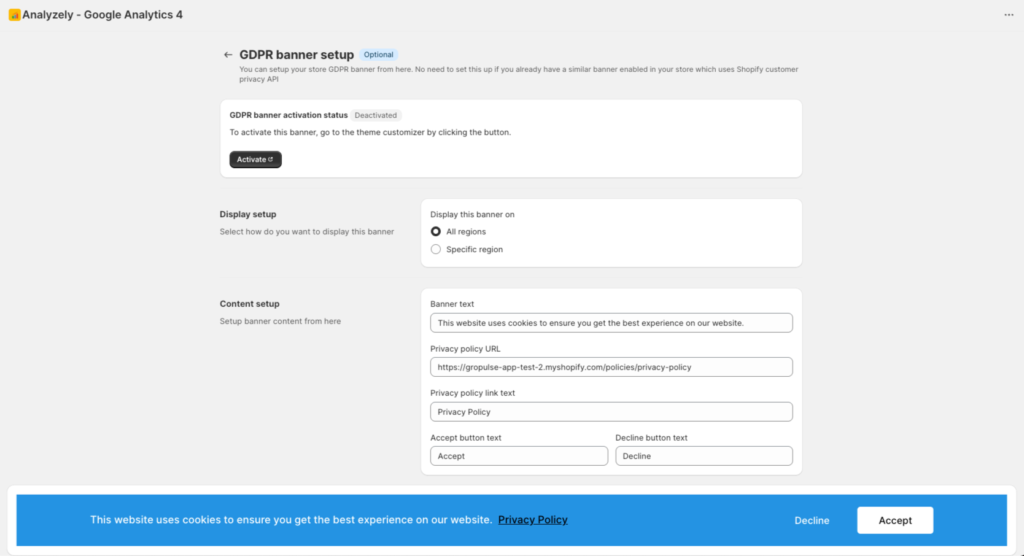
Overview
The GDPR Consent Banner feature allows you to:
- Display a privacy consent banner to visitors
- Customize banner text, colors, and buttons
- Target specific regions (EU) or all visitors
- Integrate with Google Consent Mode V2
- Comply with GDPR, CCPA, and other privacy regulations
Why You Need a Consent Banner
Legal Requirements
Several privacy regulations require consent for tracking:
| Regulation | Region | Requirement |
|---|---|---|
| GDPR | European Union | Explicit consent required |
| UK GDPR | United Kingdom | Explicit consent required |
| CCPA | California, USA | Opt-out right required |
| LGPD | Brazil | Consent required |
| POPIA | South Africa | Consent required |
Google Requirements
Google Consent Mode V2 is now required for:
- Google Ads remarketing
- Full conversion tracking
- Audience building
- Analytics without data gaps
Accessing GDPR Banner Settings
- Open the Analyzely app from your Shopify Admin
- Click GDPR Banner in the sidebar navigation
- The banner configuration page will load
Banner Preview
Live Preview
The page displays a live preview of your banner:
- Shows exactly how the banner will appear on your store
- Updates in real-time as you make changes
- Displays Accept and Decline buttons
Preview Updates
As you change settings, watch the preview update:
- Text changes appear immediately
- Color changes reflect instantly
- Button text updates in real-time
Activation
Enabling the Banner
- Locate the Consent Banner Activation toggle
- Toggle it to ON to enable the banner
- The banner will appear on your store after saving
Theme Integration
For the banner to appear on your store:
- Ensure the app is activated in your theme’s App Embeds
- The consent banner uses Shopify’s built-in Customer Privacy API
- No additional theme code is required
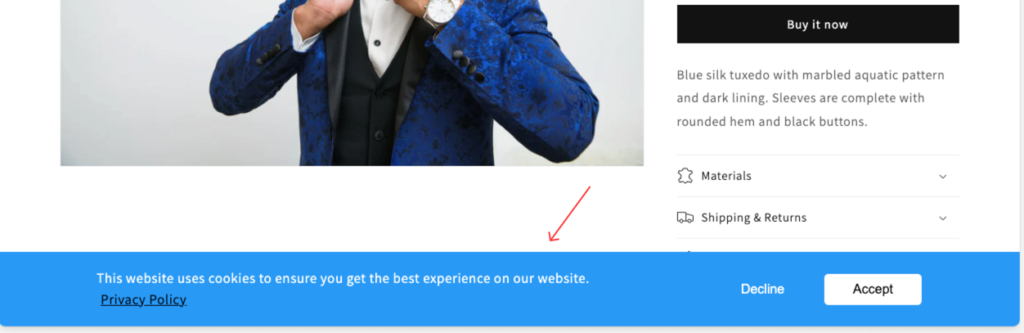
Display Setup
Region Selection
Choose where to display the consent banner:
All Regions
- Banner shows to all visitors worldwide
- Recommended for global compliance
- Simplest approach
Specific Region
- Banner shows only to visitors from selected regions
- Choose EU Region to target European visitors
- Reduces friction for non-EU customers
To configure region targeting:
- Select All Regions or Specific Region
- If Specific Region, check EU Region
- Save your settings
Note: Region detection is based on IP address and may not be 100% accurate.
Content Setup
Banner Text
Customize the main message displayed in the banner:
- Enter your consent message in the Banner Text field
- Keep it clear and concise
- Explain what you’re collecting and why
Example banner text:
We use cookies to enhance your browsing experience and analyze site traffic.
By clicking "Accept", you consent to our use of cookies.
Best practices for banner text:
- Keep it under 2-3 sentences
- Be specific about cookie usage
- Avoid legal jargon
- Make it easy to understand
Privacy Policy Link
Connect visitors to your privacy policy:
Privacy Policy URL
- Enter the full URL to your privacy policy page
- Default:
https://yourstore.com/policies/privacy-policy - Must be a valid, accessible URL
Privacy Policy Link Text
- Customize the link text displayed
- Default: “Privacy Policy”
- Examples: “Learn More”, “Read our Privacy Policy”
Button Text
Customize the button labels:
Accept Button
- Enter text for the accept button
- Default: “Accept”
- Examples: “Accept All”, “I Agree”, “Allow Cookies”
Decline Button
- Enter text for the decline button
- Default: “Decline”
- Examples: “Reject”, “No Thanks”, “Deny”
Color Setup
Banner Colors
Customize the banner appearance:
Banner Background Color
- Sets the background color of the banner
- Default: Blue (#0e99f6)
- Choose a color that matches your brand
Banner Text Color
- Sets the color of the banner message
- Default: White (#ffffff)
- Ensure good contrast with background
Accept Button Colors
Accept Button Background
- Sets the accept button background color
- Default: White (#ffffff)
- Make it stand out to encourage acceptance
Accept Button Text
- Sets the accept button text color
- Default: Black (#000000)
- Ensure readability
Decline Button Colors
Decline Button Background
- Sets the decline button background color
- Default: Transparent
- Often styled more subtly than Accept
Decline Button Text
- Sets the decline button text color
- Default: White (#ffffff)
- Must be readable against banner background
Privacy Policy Link Color
- Sets the color of the privacy policy link
- Default: Black (#000000)
- Should be visually distinct as a link
How the Banner Works
User Flow
- Visitor arrives: Banner appears at bottom of screen
- Visitor reads: Message explains tracking purpose
- Visitor chooses:
- Accept: Full tracking enabled
- Decline: Only essential cookies used
- Choice saved: Cookie stores preference
- Future visits: Banner does not reappear
Integration with Google Consent Mode V2
When paired with Google Consent Mode V2:
| Consent Status | Analytics Behavior | Ads Behavior |
|---|---|---|
| Not yet given | Cookieless pings sent | Limited signals |
| Accepted | Full tracking enabled | Full remarketing |
| Declined | No cookies set | Conversion modeling only |
Shopify Customer Privacy API
The banner integrates with Shopify’s Customer Privacy API:
- Automatically detects customer region
- Stores consent preferences
- Syncs with Shopify’s consent management
- Works with Shopify’s privacy features
Saving Your Settings
After making changes:
- A save bar appears at the top of the page
- Click Save to apply your changes
- Wait for the confirmation message
- Click Discard to undo changes
Best Practices
Design Recommendations
| Element | Recommendation |
|---|---|
| Banner position | Bottom of screen (default) |
| Size | Minimal but readable |
| Colors | Match your brand, ensure contrast |
| Accept button | Make it stand out |
| Decline option | Always provide one |
Text Recommendations
| Element | Best Practice |
|---|---|
| Message | Clear, concise, honest |
| Length | 1-3 sentences |
| Tone | Friendly, not legal |
| Privacy link | Always include |
Common Mistakes to Avoid
- Hidden decline option: Always make decline visible
- Pre-checked consent: Not compliant with GDPR
- Blocking content: Banner should not prevent site use
- No privacy policy: Always link to your policy
- Vague language: Be specific about what you track
Testing Your Banner
Preview Testing
- Make your configuration changes
- Watch the live preview update
- Verify text and colors look correct
- Check button text is clear
Live Testing
- Save your settings
- Visit your store in an incognito/private window
- Verify the banner appears
- Click Accept and verify it disappears
- Clear cookies and test Decline option
Regional Testing
If using region-specific display:
- Use a VPN to test from different regions
- Verify banner appears for EU IP addresses
- Verify banner behavior for non-EU addresses
Troubleshooting
Banner Not Appearing
- Verify the banner is enabled (toggle ON)
- Check app is activated in theme App Embeds
- Clear your browser cache
- Try an incognito/private window
- Verify you are in the targeted region
Banner Appearing to Everyone (When Targeting EU)
- Region detection is based on IP
- VPN users may show incorrect region
- Some ISPs may have incorrect geolocation
- Consider using “All Regions” for consistency
Banner Not Saving Changes
- Click the Save button
- Wait for confirmation message
- Check for validation errors
- Refresh the page and try again
Privacy Link Not Working
- Verify the URL is correct and complete
- Include https:// in the URL
- Test the URL directly in your browser
- Ensure your privacy policy page exists
Compliance Notes
What This Feature Provides
- A visible consent collection mechanism
- User choice between Accept and Decline
- Integration with Google Consent Mode
- Preference storage for return visitors
What You Are Responsible For
- Accurate privacy policy content
- Honoring user choices
- Compliance with your specific jurisdictions
- Legal review of your privacy practices
Disclaimer: This feature helps with compliance but does not guarantee legal compliance. Consult with a legal professional for specific requirements.