
eCommerce Reports provide detailed insights into your store’s sales performance, product analytics, and conversion funnel. This report helps you understand purchasing behavior and optimize your store for better revenue.
Note: eCommerce Reports are a Pro plan feature. Upgrade your plan to access these reports.
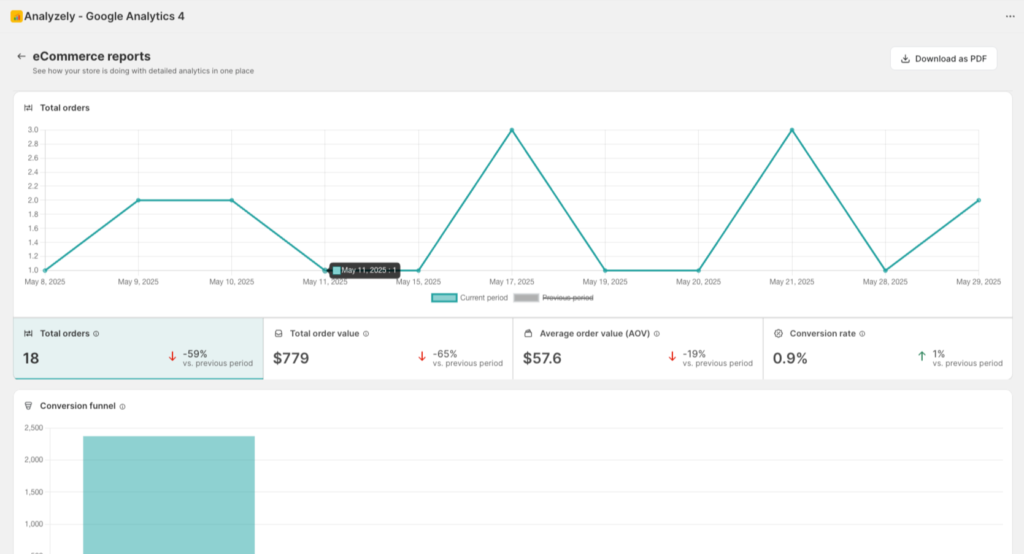
Overview
The eCommerce Reports page gives you insights into:
- Total revenue and transactions
- Average order value
- Conversion rates
- Top selling products
- Cart abandonment metrics
- Purchase funnel analysis
Accessing eCommerce Reports
- Open the Analyzely app from your Shopify Admin
- Click eCommerce Reports in the sidebar navigation
- The report will load with data from the last 30 days by default
Prerequisites
Before viewing eCommerce reports, ensure:
- You have an active Pro subscription (Monthly or Yearly)
- Your Google account is connected
- A Measurement ID is configured
- eCommerce tracking events are enabled (especially Purchase event)
- The app is activated in your theme
- You have completed purchases to generate data
Free Plan Users
If you are on the Free plan, you will see a preview of the eCommerce Reports with an upgrade prompt:
To access full eCommerce Reports:
- Click Upgrade to Pro
- Select Monthly or Yearly plan
- Complete the billing process
- Return to eCommerce Reports
Report Header
Connected Account Display
Similar to Standard Reports, the header shows your connected Google account information and selected GA4 property.
Download as PDF
Export your eCommerce report:
- Click the Download as PDF button
- Wait for the report to generate
- The PDF will download to your device
Use Case: Share revenue reports with stakeholders or include in business reviews.
Date Range Filters
Available Options
| Option | Time Period |
|---|---|
| Last 7 days | Previous 7 days |
| Last 15 days | Previous 15 days |
| Last 30 days | Previous 30 days (default) |
| Custom | Select specific dates |
Compare to Previous Period
Enable comparison to track growth:
- Check Compare to previous period
- View percentage changes for all metrics
- Identify growth or decline trends
Key Revenue Metrics
Total Revenue
Definition: The total value of all completed purchases.
What it tells you:
- Overall sales performance
- Revenue trends over time
- Impact of marketing campaigns
Total Transactions
Definition: The number of completed purchases.
What it tells you:
- Order volume
- Transaction trends
- Seasonal patterns
Average Order Value (AOV)
Definition: Total Revenue divided by Total Transactions.
What it tells you:
- Customer spending patterns
- Upselling effectiveness
- Pricing strategy impact
Calculation: AOV = Total Revenue / Total Transactions
Improving AOV:
- Offer product bundles
- Implement upselling suggestions
- Set minimum for free shipping
- Create tiered discounts
Conversion Metrics
Conversion Rate
Definition: Percentage of sessions that resulted in a purchase.
Calculation: (Transactions / Sessions) x 100
Benchmarks:
| Industry | Typical Rate |
|---|---|
| Fashion | 1.5% – 2.5% |
| Electronics | 1% – 2% |
| Beauty | 2% – 3% |
| Home & Garden | 1.5% – 2% |
Cart Abandonment Rate
Definition: Percentage of carts created but not purchased.
What it tells you:
- Checkout friction points
- Pricing or shipping concerns
- User experience issues
Reducing abandonment:
- Simplify checkout process
- Offer multiple payment options
- Display shipping costs early
- Send abandonment emails
Purchase Funnel Analysis
The purchase funnel shows how customers move through the buying process:
| Stage | Description |
|---|---|
| Sessions | All store visits |
| Product Views | Visitors who viewed products |
| Add to Cart | Visitors who added items to cart |
| Checkout Started | Visitors who began checkout |
| Purchases | Completed transactions |
Interpreting the Funnel
Drop-off between Product View and Add to Cart:
- Price concerns
- Poor product images
- Missing information
- Out of stock items
Drop-off between Add to Cart and Checkout:
- Shipping cost surprise
- Registration required
- Limited payment options
Drop-off between Checkout and Purchase:
- Complex checkout
- Trust concerns
- Payment failures
Top Selling Products
This section shows your best-performing products:
| Column | Description |
|---|---|
| Product Name | Name of the product |
| Quantity Sold | Number of units sold |
| Revenue | Total revenue from product |
| Views | Number of product page views |
Using This Data
- Inventory planning: Stock up on bestsellers
- Marketing focus: Promote top performers
- Pricing strategy: Test pricing on high-demand items
- Cross-selling: Suggest top products on other pages
Revenue by Category
See how different product categories perform:
| Column | Description |
|---|---|
| Category | Product collection or type |
| Revenue | Total revenue from category |
| Transactions | Number of orders with category items |
| Share | Percentage of total revenue |
Using This Data
- Collection optimization: Improve low-performing categories
- Seasonal planning: Track category trends
- Marketing allocation: Focus on high-revenue categories
Revenue by Traffic Source
Understand which channels drive the most valuable traffic:
| Column | Description |
|---|---|
| Source | Traffic origin (organic, paid, social, etc.) |
| Revenue | Total revenue attributed |
| Transactions | Number of purchases |
| Conversion Rate | Source-specific conversion rate |
Using This Data
- ROI calculation: Compare ad spend to revenue
- Channel investment: Increase spend on high-converting sources
- Content strategy: Create content for valuable channels
Best Practices for eCommerce Reports
Regular Review Schedule
| Frequency | Focus Areas |
|---|---|
| Daily | Revenue, transactions, any anomalies |
| Weekly | Conversion rates, top products, funnel |
| Monthly | All metrics, trends, source analysis |
Key Questions to Answer
- Is revenue growing? Compare to previous periods
- What drives purchases? Review top products and sources
- Where do customers drop off? Analyze the funnel
- Which traffic is most valuable? Check revenue by source
- How can I increase AOV? Review product performance
Actions Based on Data
| Finding | Action |
|---|---|
| Low conversion rate | Optimize product pages, simplify checkout |
| High cart abandonment | Add cart recovery emails, reduce friction |
| Single product dependency | Diversify bestsellers, improve other products |
| Traffic not converting | Improve targeting, landing page optimization |
| Declining AOV | Implement upselling, create bundles |
Understanding Data Accuracy
Event Tracking Requirements
For accurate eCommerce data, ensure these events are enabled:
| Event | Required For |
|---|---|
| View Product | Product views, funnel top |
| Add to Cart | Cart metrics, funnel middle |
| Initiate Checkout | Checkout starts, funnel |
| Purchase | Revenue, transactions, conversions |
Server-Side Events
For the most accurate purchase data:
- Enable Server-Side Events in Analytics Setup
- Configure the Measurement Protocol API Secret
- Server-side events are not blocked by ad blockers
See Server-Side Tracking for setup instructions.
Data Discrepancies
Revenue in Analyzely may differ from Shopify reports because:
- Timing: GA4 data can have 24-48 hour delays
- Attribution: Different attribution models
- Tracking: Some transactions may not be tracked (blocked scripts)
- Currency: Exchange rate timing differences
Troubleshooting
No Revenue Data
- Verify Purchase event is enabled
- Check that actual purchases have been made
- Confirm event tracking is working (check Realtime in GA4)
- Wait 24-48 hours for data processing
Conversion Rate Shows 0%
- Ensure sessions are being tracked
- Verify Purchase event fires correctly
- Check for tracking script blockers
- Test with a real purchase
Products Not Showing
- Enable View Product event
- Verify product page template has tracking
- Check product data layer configuration
- Test by viewing products in your store