
This comprehensive guide covers everything you need to know about connecting and configuring Google Analytics 4 (GA4) with Analyzely.
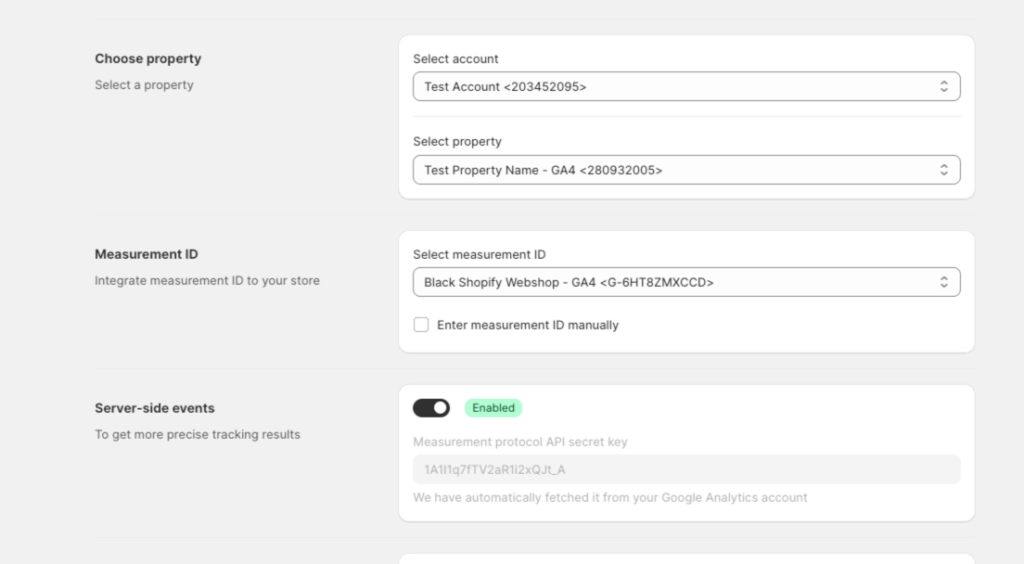
Overview
The Analytics Setup page is the central hub for configuring your Google Analytics integration. From here, you can:
- Connect your Google account
- Select your GA4 property and Measurement ID
- Enable server-side tracking
- Configure eCommerce events
- Set up Google Consent Mode V2
Accessing Analytics Setup
- Open the Analyzely app from your Shopify Admin
- Click Analytics Setup in the sidebar, or
- Click Setup from the dashboard’s analytics setup overview card
Section 1: Login with Google
Connecting Your Account
The first step is to authenticate with your Google account:
- Click the Login with Google button
- A popup window will appear asking you to select a Google account
- Choose the account that has access to your Google Analytics properties
- Review the requested permissions and click Allow
Required Permissions
Analyzely requests the following Google permissions:
| Permission | Purpose |
|---|---|
| View Analytics data | Read your analytics reports and metrics |
| Manage Analytics properties | Automatically configure measurement IDs and API secrets |
Note: If you do not grant the “Manage Analytics” permission, some features like automatic Measurement ID selection and server-side tracking setup will require manual configuration.
Connected Account Display
Once connected, you will see:
- Your Google account name
- Your email address
- Your profile photo (if available)
- A Logout button to disconnect
Troubleshooting Connection Issues
Missing Permissions Banner
If you see a warning about missing permissions:
- Click the provided link to re-authenticate
- Make sure to grant all requested permissions
- Try logging out and logging back in
No Properties Found
If your account shows no properties:
- Verify you have access to GA4 properties (not Universal Analytics)
- Check your Google Analytics admin to confirm property access
- Ensure you are using the correct Google account
Section 2: Choose Property
Selecting Your Account
- Click the Account dropdown
- Select your Google Analytics account from the list
- Account names are displayed with their account IDs
Selecting Your Property
After selecting an account:
- Click the Property dropdown
- Select the GA4 property for your Shopify store
- Property names are displayed with their property IDs
Tip: If you have multiple properties, look for the one that matches your store name or domain.
Creating a New Property
If you do not have a GA4 property yet:
- Go to Google Analytics
- Click Admin (gear icon)
- Click Create Property
- Enter your property name (e.g., “My Shopify Store”)
- Set your timezone and currency
- Complete the business information
- Create a Web data stream with your store URL
- Return to Analyzely and refresh the page
Section 3: Measurement ID
The Measurement ID is a unique identifier that tells Google Analytics where to send your tracking data.
Automatic Mode (Recommended)
When using automatic mode:
- The app detects available data streams from your property
- Select your Measurement ID from the dropdown
- The ID format is G-XXXXXXXXXX
Manual Mode
If you need to enter your Measurement ID manually:
- Toggle to Manual mode
- Enter your Measurement ID in the text field
- The ID must start with “G-“
Finding Your Measurement ID
If you need to find your Measurement ID in Google Analytics:
- Go to Google Analytics
- Click Admin (gear icon at bottom left)
- In the Property column, click Data Streams
- Click on your web stream
- Copy the Measurement ID (format: G-XXXXXXXXXX)
Section 4: Server-Side Events
Server-side tracking sends events directly from the Analyzely server to Google Analytics, providing more accurate data that is not affected by ad blockers or browser restrictions.
Note: This is a Pro plan feature.
Enabling Server-Side Events
- Toggle the server-side events switch to ON
- The app will attempt to automatically fetch the Measurement Protocol API Secret
- If automatic fetch fails, you will need to enter it manually
Measurement Protocol API Secret
The API secret is required for server-side events:
Automatic Setup (when using Auto Measurement ID):
- The API secret is automatically fetched and configured
Manual Setup:
- Go to Google Analytics > Admin > Data Streams
- Click on your web stream
- Scroll down and click Measurement Protocol API secrets
- Click Create to generate a new secret
- Copy the secret value
- Paste it into Analyzely
For detailed instructions, see Server-Side Tracking.
Section 5: Data Layer / eCommerce Events
This section lets you configure which customer actions are tracked in Google Analytics.
Available Events
| Event | Description | When It Triggers |
|---|---|---|
| View Category | Collection page views | Customer views a collection page |
| View Product | Product page views | Customer views a product page |
| Search Content | Store searches | Customer uses the search function |
| Add to Cart | Cart additions | Customer adds a product to cart |
| Initiate Checkout | Checkout starts | Customer begins the checkout process |
| Add Shipping Info | Shipping details | Customer enters shipping information |
| Add Payment Info | Payment details | Customer enters payment information |
| Purchase | Completed orders | Customer completes a purchase |
| Refund | Order refunds | An order is refunded (requires server-side) |
Enabling Events
- Check the box next to each event you want to track
- All events are enabled by default on Pro plans
- Click Save to apply your changes
Purchase Event Options
When the Purchase event is enabled, you can configure:
- Include Tax Amount – Add tax to the purchase value
- Include Shipping Amount – Add shipping cost to the purchase value
Refund Event Requirements
The Refund event requires:
- Pro plan subscription
- Server-side events enabled
- Measurement Protocol API secret configured
For detailed event configuration, see Event Tracking.
Section 6: Google Consent Mode V2
Google Consent Mode V2 adjusts how Google tags behave based on user consent, helping you comply with privacy regulations while maintaining measurement capabilities.
Enabling Consent Mode
- Toggle the Google Consent Mode V2 switch to ON
- The app will automatically integrate with Shopify’s Customer Privacy API
- Tracking behavior will adjust based on customer consent choices
How It Works
When a customer visits your store:
- Before consent: Basic data is sent in a privacy-safe manner (cookieless pings)
- After consent (Accepted): Full tracking is enabled with cookies
- After consent (Declined): No tracking cookies are set, but conversion modeling may still work
Pairing with GDPR Banner
For complete privacy compliance:
- Enable Google Consent Mode V2 in Analytics Setup
- Configure the GDPR Consent Banner to collect user consent
- The banner and consent mode work together automatically
Saving Your Settings
After making any changes:
- A save bar will appear at the top of the page
- Click Save to apply your changes
- Wait for the success confirmation
- To undo changes, click Discard
Important: Changes are not applied until you click Save.
Configuration Summary
After completing setup, your dashboard will show a summary of your configuration:
- Google Account connection status
- Selected Measurement ID
- Server-side events status
- Google Consent Mode V2 status
Best Practices
- Use Automatic Mode when possible for the simplest setup
- Enable Server-Side Events (Pro) for the most accurate tracking
- Enable All Events to get complete eCommerce data
- Turn on Consent Mode V2 if you serve customers in privacy-regulated regions
- Verify Your Setup by checking Realtime reports after saving