
Email Notifications allow you to receive scheduled analytics reports directly in your inbox. Stay informed about your store’s performance without logging into the app.
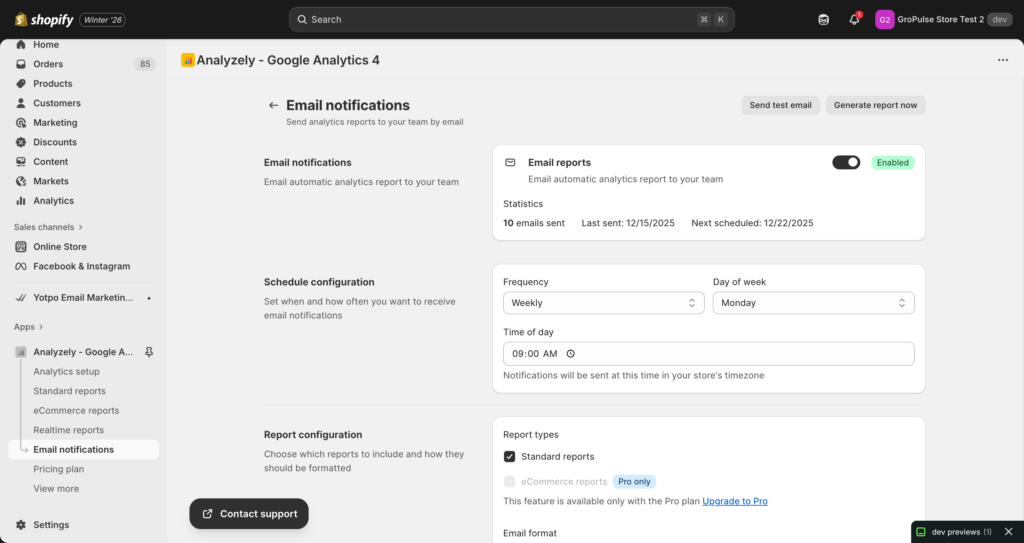
Overview
The Email Notifications feature lets you:
- Schedule automated analytics reports
- Choose report frequency (daily, weekly, monthly)
- Select which reports to include
- Send to multiple recipients
- Customize email subject lines
Plan Availability
| Feature | Free Plan | Pro Plan |
|---|---|---|
| Standard Reports Email | Yes | Yes |
| eCommerce Reports Email | No | Yes |
| All scheduling options | Yes | Yes |
| Multiple recipients | Yes | Yes |
Accessing Email Notifications
- Open the Analyzely app from your Shopify Admin
- Click Email Notifications in the sidebar navigation
- Or click Configure in the Email Status card on the dashboard
Prerequisites
Before configuring email notifications, ensure:
- Your Google account is connected
- A GA4 property is selected and saved
- Your Measurement ID is configured
- You have valid email addresses for recipients
Note: If you see an empty state, complete the Google Analytics Setup first.
Enabling Email Reports
Turn On Email Notifications
- Locate the Email Reports toggle at the top of the page
- Click the toggle to switch it to ON
- The toggle will show “Enabled” with a green badge
Statistics Display
When enabled, you will see email statistics:
| Statistic | Description |
|---|---|
| Emails Sent | Total number of reports sent |
| Last Sent | Date of the most recent report |
| Next Scheduled | Date of the next scheduled report |
Schedule Configuration
Frequency Options
Choose how often you want to receive reports:
| Frequency | When Reports Are Sent |
|---|---|
| Daily | Every day at your chosen time |
| Weekly | Once per week on your chosen day |
| Monthly | Once per month on the 1st |
Day of Week (Weekly Reports)
If you select Weekly frequency:
- A Day of Week dropdown will appear
- Select which day you want to receive the report
- Options: Monday through Sunday
Time of Day
Set what time you want reports delivered:
- Use the Time field to select your preferred time
- Time is based on your store’s timezone
- Reports will be sent around this time (may vary by a few minutes)
Tip: Choose a time when you typically review business metrics, like morning start or end of day.
Report Configuration
Report Types
Select which reports to include in your email:
Standard Reports
- Available on all plans
- Includes: Sessions, Page Views, Bounce Rate, Top Pages, Referrers
- Always available to select
eCommerce Reports
- Requires Pro plan
- Includes: Revenue, Transactions, Conversion Rate, Top Products
- Shows “Pro only” badge on Free plan
To select report types:
- Check the box next to Standard Reports
- Check the box next to eCommerce Reports (Pro plan only)
- At least one report type must be selected
Validation: You must select at least one report type when email notifications are enabled.
Email Format
Choose how your reports are formatted:
| Format | Description |
|---|---|
| HTML Email | Rich formatting with charts and styling |
| Summary Text | Plain text summary of key metrics |
HTML Email Features:
- Visual charts and graphs
- Color-coded metrics
- Professional formatting
- Better for review and sharing
Summary Text Features:
- Compact and quick to read
- Works on all email clients
- Lower bandwidth usage
- Good for quick checks
Email Recipients
Primary Email Address
Enter the main email address to receive reports:
- Type your email address in the Primary Email field
- This email is required for email notifications to work
- Must be a valid email format (e.g., you@example.com)
Additional Recipients
Add more email addresses to receive reports:
- Click Add Email button
- Enter the additional email address
- Repeat for each recipient
- Click the delete icon to remove an email
Tips for multiple recipients:
- Add team members who need regular updates
- Include stakeholders or partners
- Add your personal email as backup
- Each email must be valid format
Validation
The app validates email addresses:
- Format must be valid (name@domain.com)
- Empty fields will show an error
- Duplicate emails are allowed but not recommended
Email Customization
Custom Subject Line
Personalize the email subject:
- Enter your custom subject in the Custom Subject field
- Leave blank to use the default subject
- Use variables for dynamic content:
[Store Name]– Replaced with your store name[Date]– Replaced with the report date
Example subjects:
Weekly Analytics Report - [Store Name][Store Name] - Analytics for [Date]Your Store Performance Update
Testing Your Configuration
Send Test Email
Before relying on scheduled emails, send a test:
- Complete all configuration settings
- Click Save to save your settings
- Click Send Test Email in the page header
- Check your inbox for the test email
What to check in the test email:
- Email arrives at all recipient addresses
- Subject line displays correctly
- Report data is accurate
- Charts and formatting appear properly (HTML format)
- Links work correctly
Generate Report Now
Create an immediate report outside the schedule:
- Click Generate Report Now in the page header
- The app will generate and send the report
- Check your inbox for the report
This is useful for:
- Getting an immediate report
- Testing before an important meeting
- Verifying configuration changes
Saving Your Settings
After making any changes:
- A save bar will appear at the top of the page
- Click Save to apply your changes
- Wait for the success confirmation
- To undo changes, click Discard
Understanding Email Report Content
Standard Report Email Includes
| Section | Content |
|---|---|
| Summary | Sessions, Page Views, Bounce Rate |
| Comparison | Change vs previous period |
| Top Pages | Most viewed pages |
| Traffic Sources | Where visitors came from |
| Geography | Top countries |
eCommerce Report Email Includes (Pro)
| Section | Content |
|---|---|
| Revenue Summary | Total revenue, transactions |
| Conversion | Conversion rate |
| Average Order Value | AOV metric |
| Top Products | Best selling items |
| Performance | Comparison to previous period |
Best Practices
Recommended Configuration
| Setting | Recommendation | Reason |
|---|---|---|
| Frequency | Weekly | Good balance of insight and frequency |
| Day | Monday | Start week with previous week’s data |
| Time | 8:00 AM | Review with morning coffee |
| Reports | Both (if Pro) | Complete picture of performance |
| Format | HTML | Better visualization |
Who Should Receive Reports
| Role | Recommendation |
|---|---|
| Store Owner | Yes – primary recipient |
| Marketing Manager | Yes – for campaign insights |
| Operations | Optional – for inventory planning |
| External Partners | Optional – if sharing metrics |
Avoiding Email Overload
- Daily reports can be overwhelming – use for high-activity stores
- Weekly is ideal for most stores
- Monthly is good for stakeholder updates
- Consider different frequencies for different recipients
Troubleshooting
Not Receiving Emails
- Check spam/junk folder: Reports may be filtered
- Verify email address: Check for typos
- Check email notifications are enabled: Toggle must be ON
- Verify Google account connection: Must be connected
- Send a test email: Use the test button to verify
Emails Going to Spam
- Add the sender email to your contacts
- Mark emails as “Not Spam”
- Create a filter to always deliver these emails
- Check with your email provider’s settings
Wrong Data in Reports
- Verify correct GA4 property is selected
- Check date range expectations
- Ensure events are tracking properly
- Compare with in-app reports for accuracy
Test Email Works but Scheduled Emails Do Not
- Verify the schedule is correctly configured
- Check that settings were saved
- Wait for the scheduled time to pass
- Contact support if issues persist